Clear the
download pile.
Receipts, screenshots, PDFs, and ZIPs land in the same place. Quick tidy gives them homes such as Documents, Images, and Archives, so you spend less time dragging files around.
Tuck
A tidier Downloads folder.
A few less things to sort yourself.
Tuck groups loose files into folders, shows you the moves first, and remembers what it did. A small Windows utility for a task that keeps piling up.
Download Tuck for Windows Get the portable ZIP instead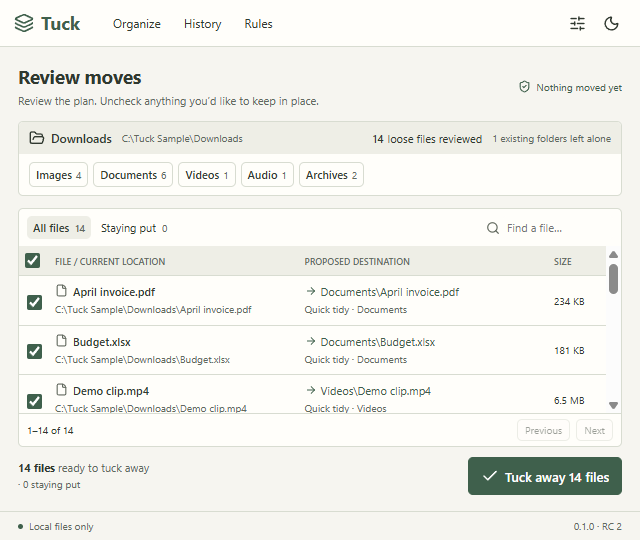
This preview is unsigned, so Windows may show a publisher or reputation warning. Tested on our development PC; independent Windows-machine testing remains pending. No account or subscription is needed.
Read the build-time testing record ↗Receipts, screenshots, PDFs, and ZIPs land in the same place. Quick tidy gives them homes such as Documents, Images, and Archives, so you spend less time dragging files around.
See the proposed folders and filenames before anything moves. Leave out individual files or add exclusions for things you want to keep close at hand. Existing subfolders stay as they are.
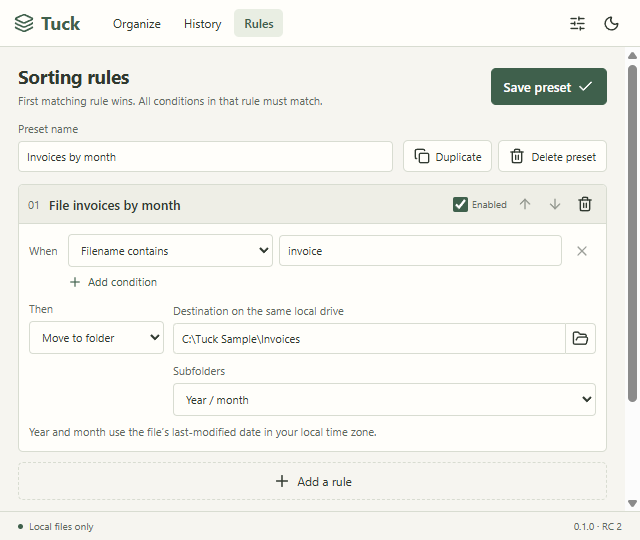
Save a preset for recurring files, such as invoices or project downloads. Group by type or last-modified month, then run it when you choose. Tuck works locally on your computer.
FROM PILE TO PLACE
Choose a folder. Review the plan. Tuck away.
Select a screenshot to enlarge it.
Actual release candidate, using sample files.
01 / CHOOSE A FOLDER
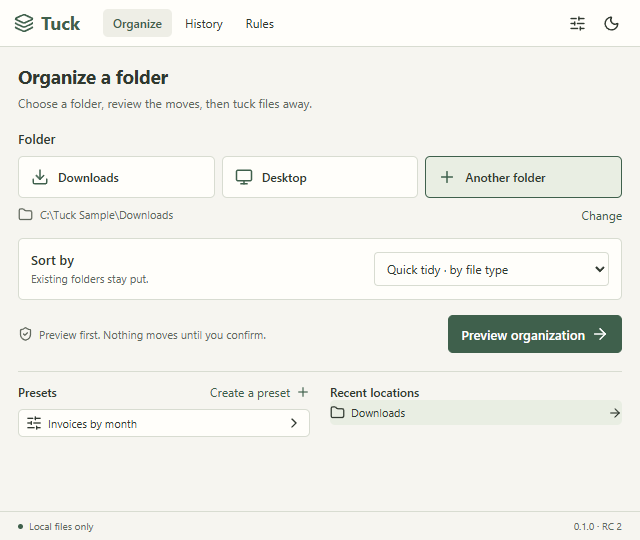
Pick Downloads, Desktop, or a local folder. Quick tidy is ready to sort loose files into familiar categories.
02 / CHECK THE MOVES
Review the destination for each file. Uncheck anything you want to leave in place, then confirm when you’re ready.
03 / MAKE IT YOURS
Save sorting rules for file types, names, sizes, or age. Reuse a preset the next time that folder needs attention.
GOOD TO KNOW
Tuck moves loose files in one local folder into category folders. It does not reorganize existing subfolders, delete your files, or sort in the background. You review a plan and confirm before each run.
Open History & undo to preview putting files back. Tuck checks that the moved file still matches its recorded identity, size, and modification time, and that its old location is free. Changed or conflicting entries are skipped with an explanation. Keep the history until you are happy with the result; undo does not replace a backup.
The preview shows a numbered name when a destination is already taken. If something appears there after the preview, Tuck skips that move. It does not overwrite an existing file.
Sorting uses filenames and file metadata, not document contents. No files are uploaded and there are no accounts or analytics. Settings and recovery history stay on your computer. History includes full file paths until you forget a session. Read Tuck’s privacy details.
Windows 11 on an x64 PC and Microsoft WebView2. The installer runs for your user account and can obtain WebView2 if it is missing. The portable ZIP needs WebView2 already installed. This version supports local, same-drive moves; network folders and cross-drive moves are outside its scope.
Yes. Choose Desktop or another supported local folder. Saved presets can match extensions, filename text, file size, and modification age. You can leave unmatched files in place and choose folders by category, last-modified year/month, or both.
Tuck skips files that are locked, changed since the preview, hidden or protected, still downloading, or modified within the last five seconds. Links and unavailable cloud files are also skipped. The results explain what happened.
Email hello@riverandrail.app with your Windows version, Tuck version, and what happened. Remove private paths from screenshots before sharing them.
GET TUCK
The installer and portable ZIP contain the same release candidate. The testing record describes the checks performed and the remaining limits.
THREE FREE UTILITIES, MADE HERE
Explore your storage with DiskGolf. Review cleanup and exact duplicates with Groundskeeper. Put loose files in order with Tuck.
Meet all three utilities ↗